The PC400 Main Screen
To start PC400 go to the start menu of the computer and select PC400. You can alternatively use the shortcut on the desktop if you elected to create one during the installation process.
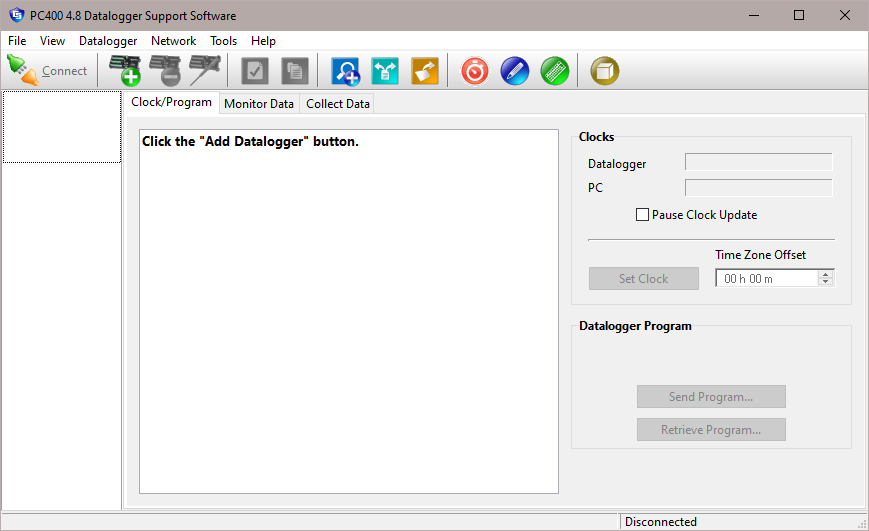
PC400 offers an integrated main screen, with three tabs for basic communications functions (Clock/Program, Monitor Data, and Collect Data), and buttons from which to launch standalone applications to work with data files or create datalogger programs.
Setting up and configuring PC400 to communicate with dataloggers is done with the EZSetup Wizard. This wizard appears automatically the first time you run PC400. To add additional dataloggers, click the Add button on the main toolbar to bring up the EZSetup Wizard again. Editing existing datalogger and communications settings is also done through this wizard, via the Edit button.
PC400 supports the CRBasic series of dataloggers, including the CR1000X, CR6 series, CR350, CR300 series, CR1000, CR800 series, CR3000, CR5000, CR9000, and CR200/205. PC400 also supports the Edlog dataloggers (CR500, CR510, CR10, CR10X, 21X, CR23X, and CR7 dataloggers) using any of their mixed-array, table-data, or PakBus operating systems.
PC400 supports one level of communication to any one datalogger in your network. For instance, PC400 supports phone modem communication or RF communication, but it does not support phone-to-RF communication links (two levels).
In order to be easy to use, PC400 relies on user-attended communications. It does not provide for automated scheduled data collection or automated clock checks. It also doesn’t support remote connections from other PCs.
In addition to the communications functions, PC400 provides Split, View Pro, and CardConvert for working with data files, Short Cut for generating programs, and Edlog and CRBasic Editor for more advanced datalogger program editing. These tools are accessed via the buttons on the main screen or the pull-down menu selections under the Tools menu item.
Help for each application is available from the Help menu item, or by moving the focus to a control (by clicking on or tabbing to a control) and pressing F1.
To exit PC400, either click the [X] in the upper right hand corner of the main screen, or select Exit under the File menu.